Vimeo upload guidelines
Hosting and Embedding
You will require a Vimeo Pro account for the following.
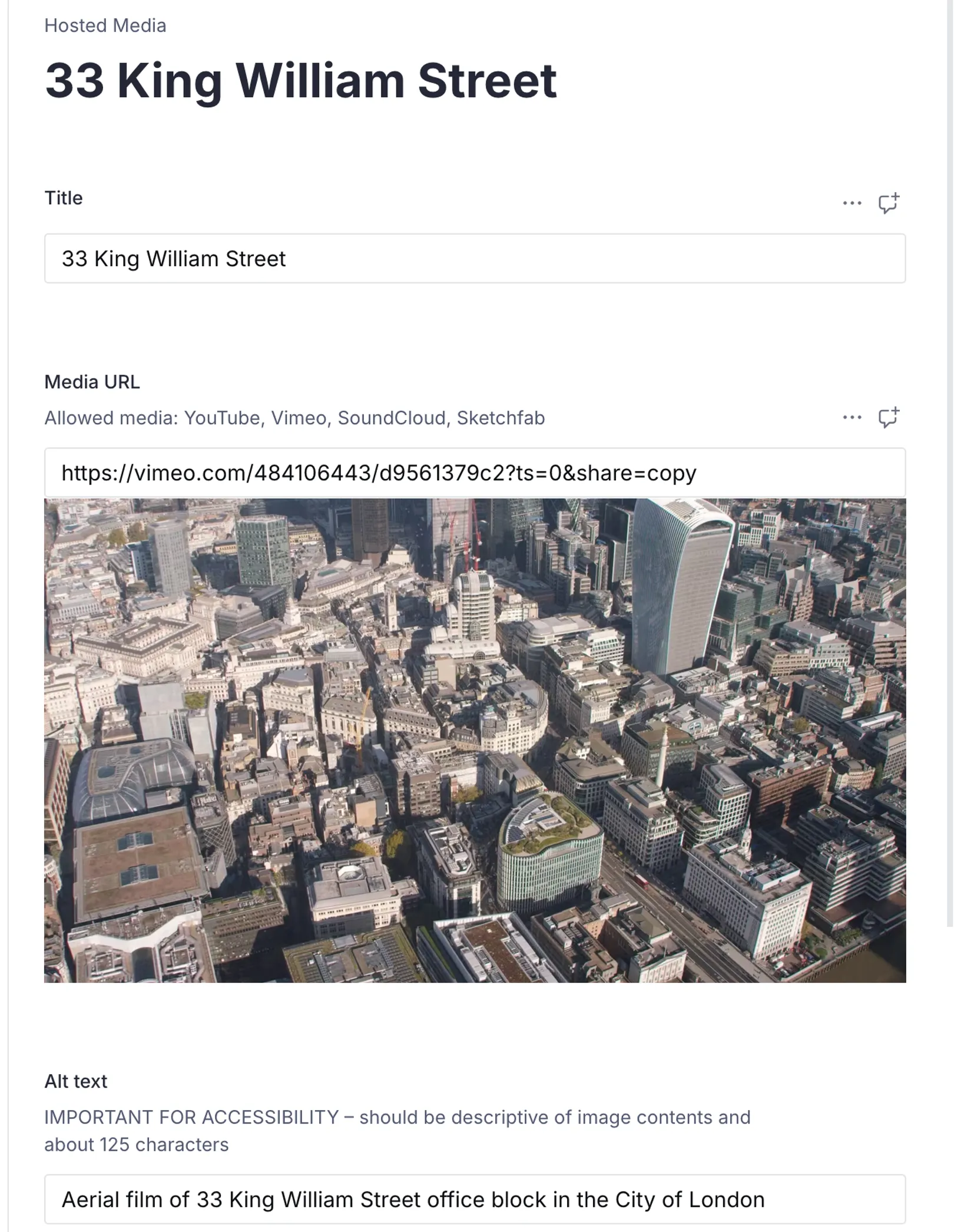
Embed as part of the page content
Copy the video link and simply paste into the embed field in Sanity. YouTube videos can be used in the same way for hosted videos on content pages and for cards on homepage (not auto-playing) but not for the homepage heroes.
Video permissions and media controls for user-friendly navigation
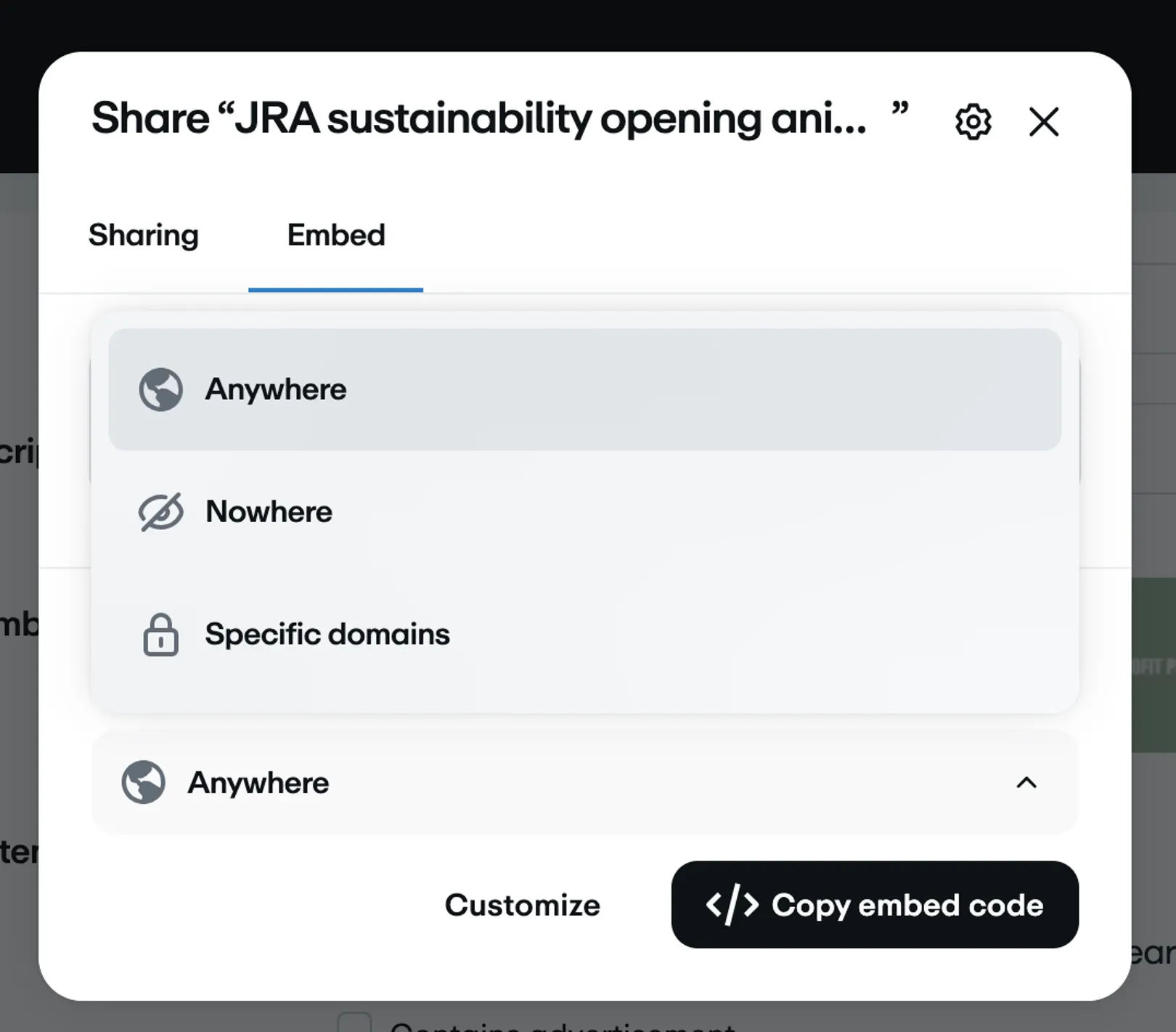
Click on the blue 'Share' button.
Under the 'Embed' tab, make sure the video permissions are set to embed anywhere or to specific domains.
If you do not want to embed anywhere you can choose specific domains.
From the Embed privacy dropdown choose ‘Specific domains”
The ones required are:
https://www.jra.co.uk/
http://localhost:3000/
https://jra-dev.netlify.app/
Default content rating for Vimeo account and specific rating for each video
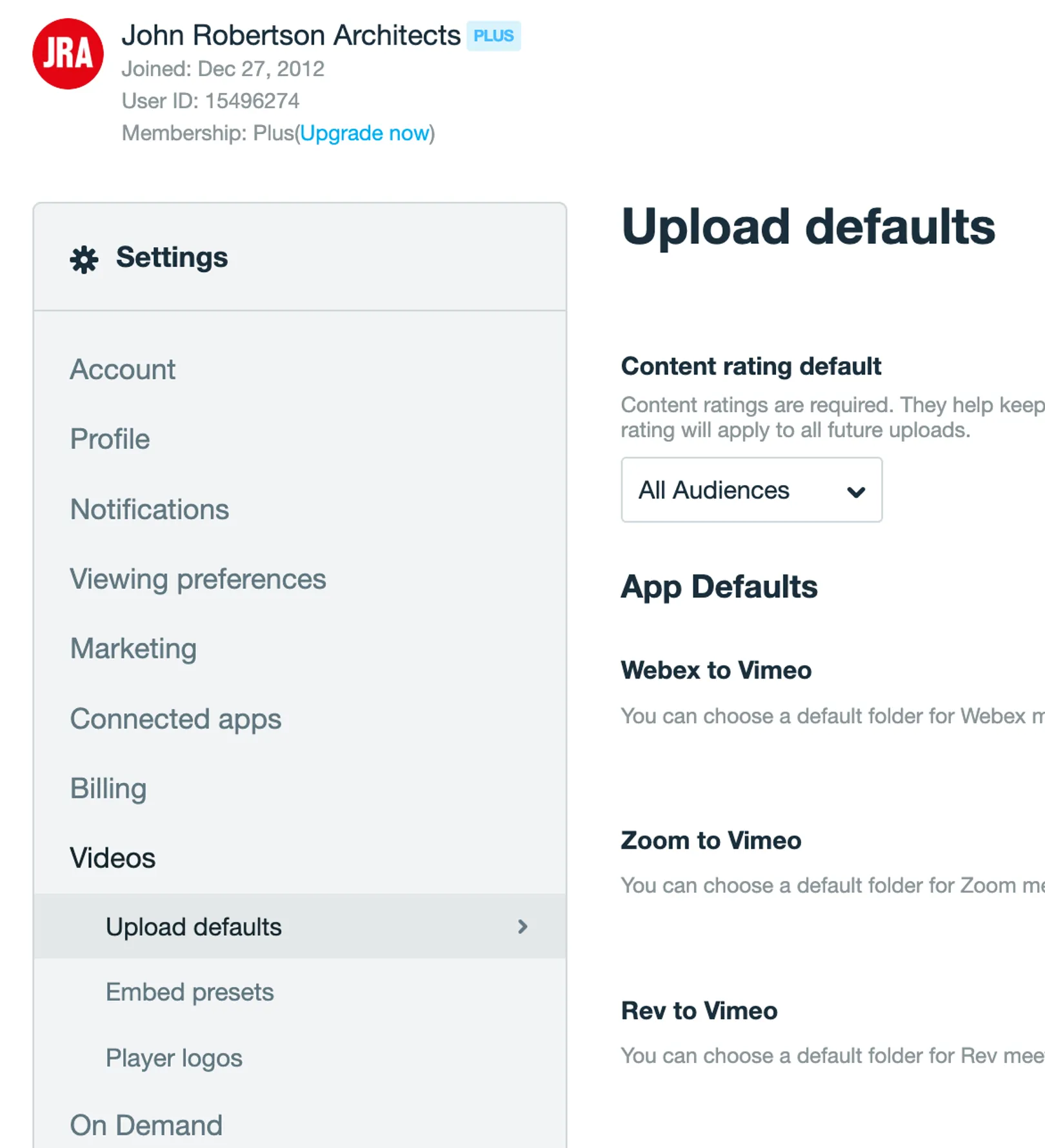
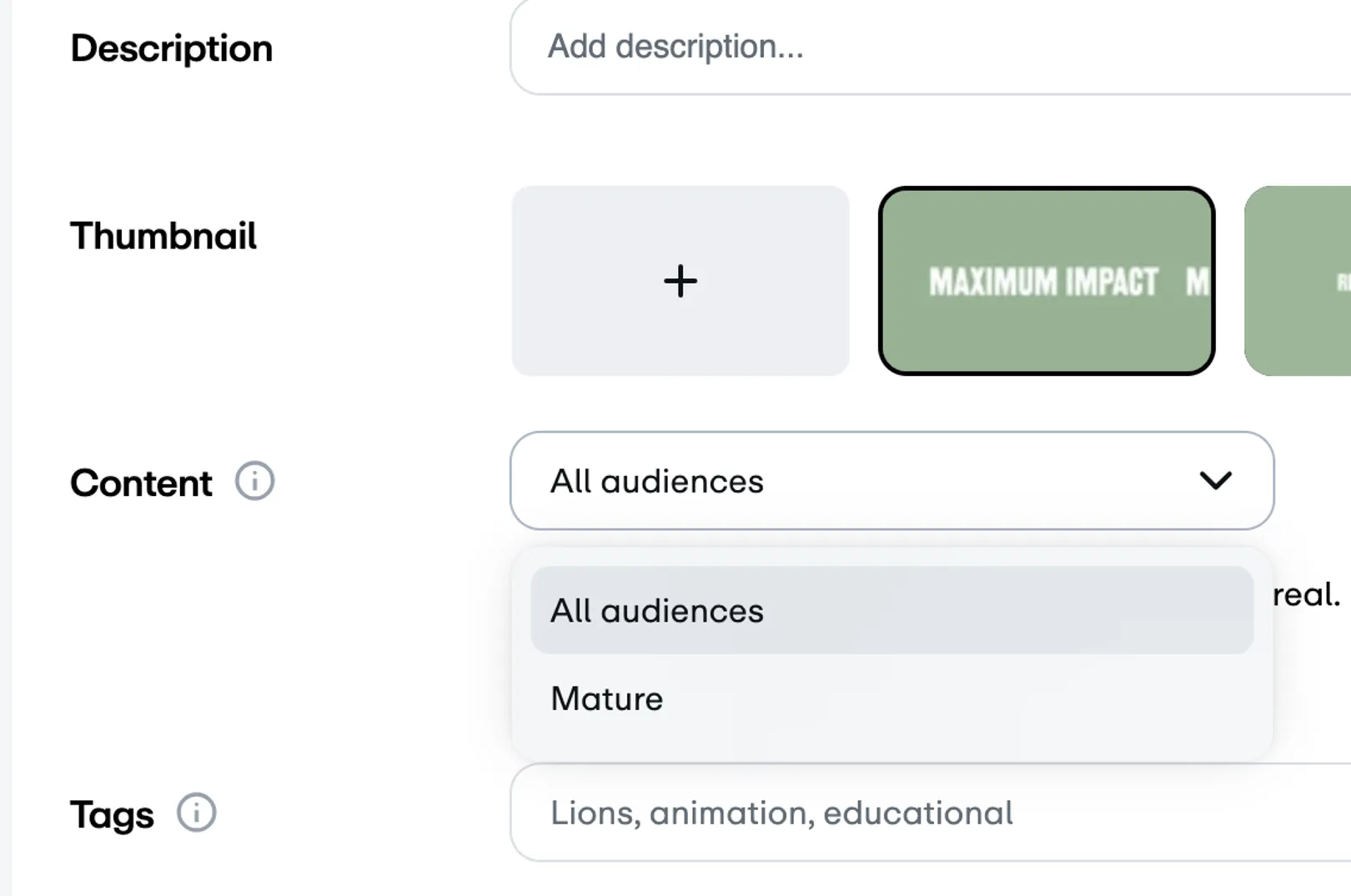
Make sure your default settings for all videos in your Vimeo account is set to ‘All Audiences’To find this setting click on your account icon and choose settings from the dropdown. Under ‘Videos’ on the LHS choose ‘Upload defaults’ and under ‘Content ratings default’ choose ‘All Audiences’.
You can edit the Content rating for individual videos on the Content settings under the video on the ‘manage’ video page.
Embed with non-autoplay as default, respecting user preferences
You do not need to change any other settings, the front-end of the website will set the autoplay and interface options according to how the video is used i.e. if it is used in the homepage hero slideshow or if it is embedded as content in a project or journal page.
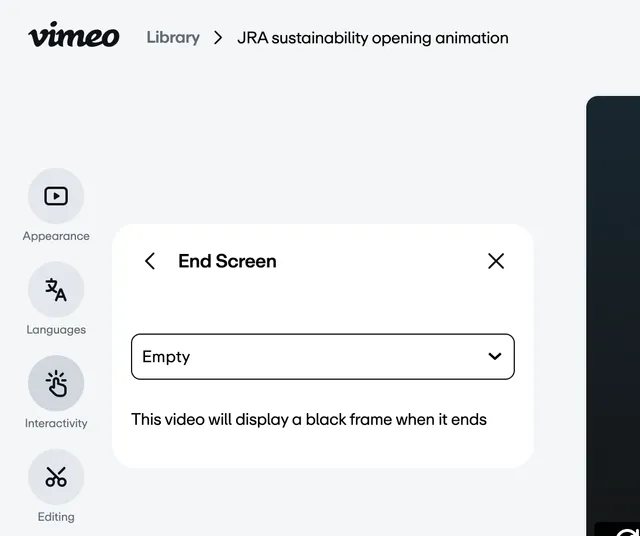
Make Sure End Screen is Empty
On left hand side menu choose 'Interactive' and then to the right choose 'Empty' under 'End Screen'